
A guided, click-by-click build of a generally available Copilot Studio computer-using agent that automates web and desktop UIs, with real config, model choice, credentials, and cost math.
What is a Copilot Studio computer-using agent?
A Copilot Studio computer-using agent is an AI agent that operates websites and Windows desktop apps the way a person does — moving a virtual mouse, typing on a virtual keyboard, and reading the screen — instead of calling an API. Microsoft made this capability, branded as the “computer use” tool, generally available as part of the Copilot Studio May 2026 update, expanding it from preview to all commercial Power Platform geographies. It first appeared in preview in September 2025 for Windows desktop apps; the 2026 release adds model choice, enterprise credential storage, and audit logging.
Under the hood, computer use is powered by Computer-Using Agents (CUA): models that pair vision with reasoning to navigate graphical interfaces. The key design decision is that it does not rely on hard-coded selectors. When a vendor moves a button or redesigns a page, a brittle RPA script breaks; a computer-using agent looks at the new screen and figures out the next click. That resilience is the entire pitch — and the reason it is metered per step rather than per run.
This tutorial walks through an actual build: adding the tool, picking a model, wiring up a machine, storing credentials, testing, and publishing. Where the experience is genuinely low-code, I’ll name the exact clicks. Where it has real teeth — cost, security, machine setup — I’ll be blunt about what you’re signing up for.

What do you need before building a computer-using agent?
Before you build a Copilot Studio computer-using agent you need three things: an agent with generative orchestration turned on, a licensing plan that supplies Copilot Credits, and a Windows machine (or a Microsoft-hosted one) for the agent to drive. Computer use is only available on agents that have generative orchestration enabled — it’s the setting that lets the model choose tools dynamically rather than follow a fixed topic tree.
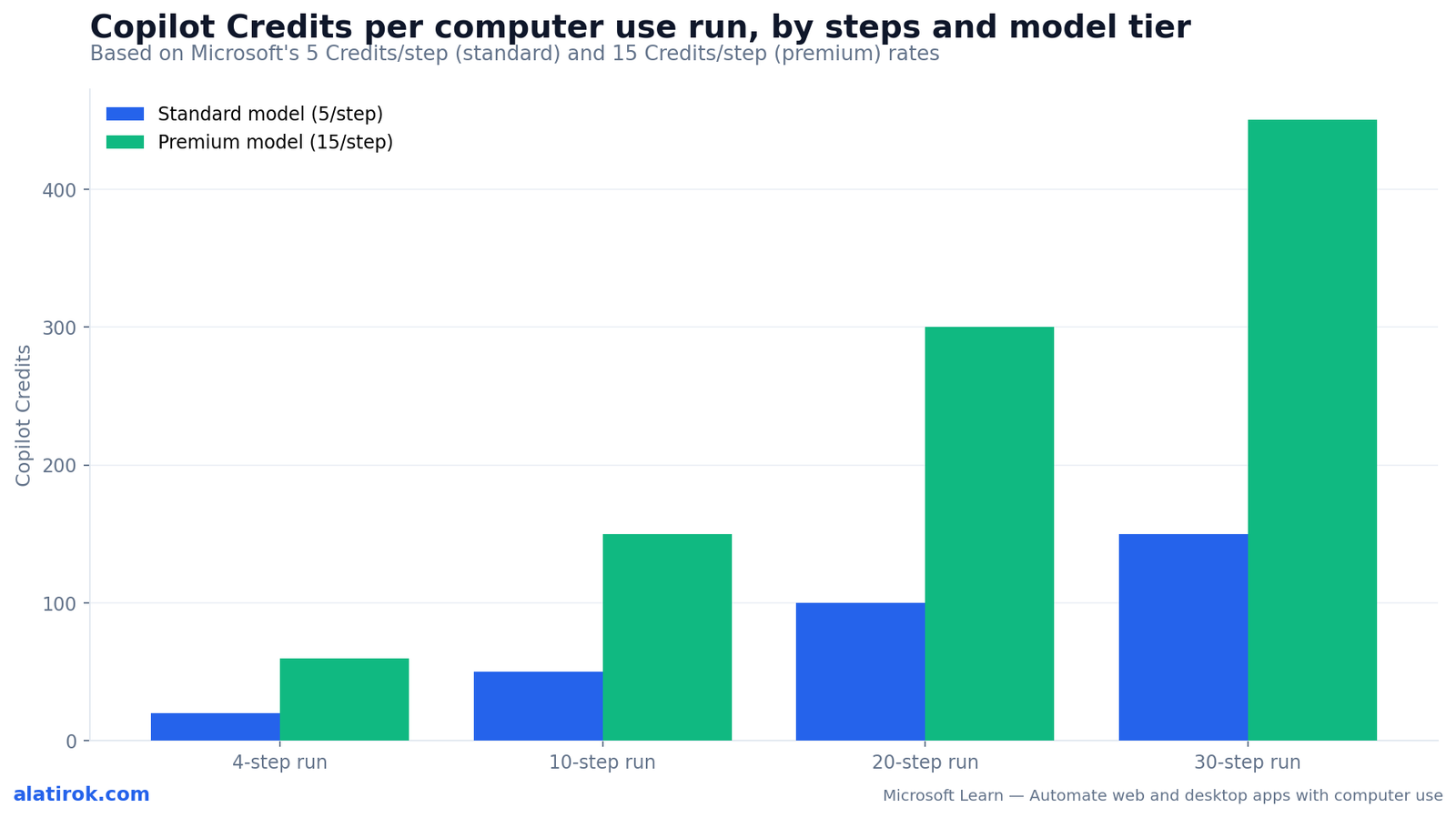
On licensing, computer use bills through the Agent action feature and consumes Copilot Credits per step. A “step” is one unit of the model’s plan — launch the browser, click a button, fill a field — and each may bundle several low-level actions. Standard models cost 5 Credits per step; premium models cost 15. Budget in steps, not tasks, because a real-world form fill is rarely fewer than four or five steps.
On compute, the agent needs a Windows surface. Microsoft now offers three options, two of which are still in preview, covered in the machine section below. If you want to use an Anthropic model, your Power Platform admin must also turn on access to external models for the environment.
| Requirement | Detail | Where to set it |
|---|---|---|
| Generative orchestration | Must be ON for the agent — computer use is unavailable otherwise | Agent Settings > Orchestration |
| Copilot Credits | 5 Credits/step (standard) or 15/step (premium); billed via Agent action | Tenant licensing / capacity |
| A Windows machine | Hosted browser, Cloud PC pool, or bring-your-own (BYO) | Tool config > Machine |
| External model access | Required to use Anthropic Claude models in the picker | Power Platform admin center |
How do you add the computer use tool to an agent?
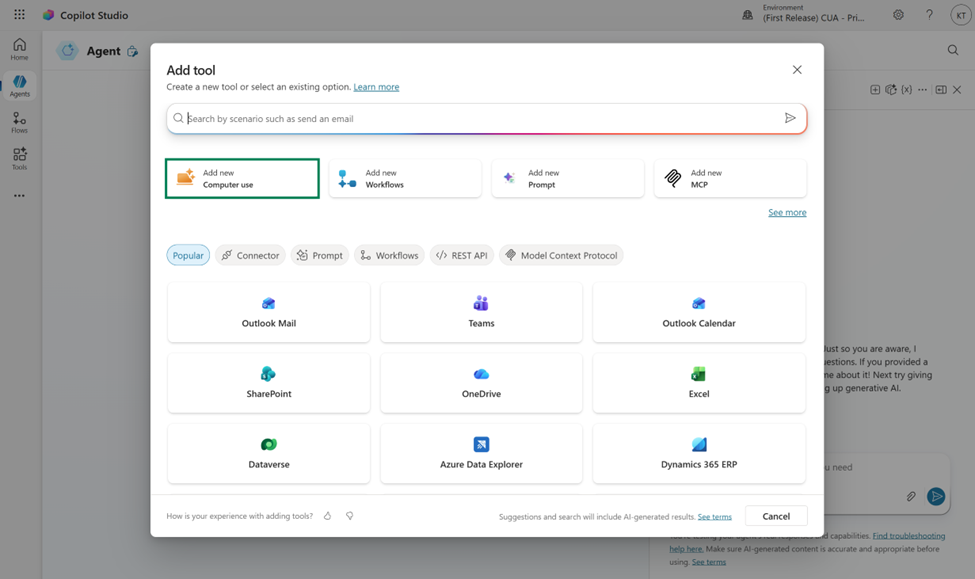
To add computer use, open your agent’s Tools page, select Add tool, choose New tool, then pick Computer use — and configure four required fields: Name, Description, Model, and Instructions. This is the genuinely low-code part of a Copilot Studio computer-using agent, and Microsoft ships instruction templates so you’re not starting from a blank box.
Here is the exact path, click by click, straight from the product:
Generative orchestration is the gate. If the Computer use tile is missing from the New tool list, your agent almost certainly has generative orchestration turned off. Flip it on in the agent’s orchestration settings and the tile appears.
Step-by-step: add and configure the tool
1. Go to the Tools page for your agent and select Add tool. 2. In Add tool, select New tool. 3. Select Computer use. 4. Provide the natural-language instructions describing the task (or start from a template). 5. Select Add and configure. 6. On the configuration page, fill the four required fields: Name (a display name to tell this tool apart from others), Description (a short note on what it does and when to use it — the agent reads this to decide when to call the tool), Model (the picker is covered below), and Instructions (the numbered steps, including full URLs and exact app names). 7. Select Save.Which model should you pick for computer use in 2026?
At GA, two models are generally available for computer use — OpenAI’s Computer-Using Agent (CUA) and Anthropic’s Claude Sonnet 4.5, both standard tier at 5 Credits per step — while Claude Sonnet 4.6 (standard) and Claude Opus 4.6 (premium) are listed as Experimental. The Model field in the tool config is a dropdown; the choice is a direct cost-and-capability tradeoff for your Copilot Studio computer-using agent.
The practical guidance: start on a generally available standard model for anything you intend to ship. Reserve the Experimental Opus 4.6 — at triple the Credit cost — for genuinely hard, ambiguous UIs where reasoning quality earns back the spend. Don’t put an Experimental model on a production run you can’t babysit.
Status labels move fast. Sonnet 4.6 and Opus 4.6 are Experimental as of the late-May 2026 docs. Re-check the live model table in the tool before promoting anything Experimental into a production agent.
| Provider | Model | Tier | Status | Credits per step |
|---|---|---|---|---|
| OpenAI | Computer-Using Agent (CUA) | Standard | Generally available | 5 |
| Anthropic | Claude Sonnet 4.5 | Standard | Generally available | 5 |
| Anthropic | Claude Sonnet 4.6 | Standard | Experimental | 5 |
| Anthropic | Claude Opus 4.6 | Premium | Experimental | 15 |
Where does a computer-using agent actually run?
A Copilot Studio computer-using agent runs on a Windows surface you select in the Machine field: a Microsoft-managed Hosted browser (preview), a Cloud PC pool (preview), or a bring-your-own machine you register in Power Automate. This is the single most consequential setup choice, because it determines security posture, what resources the agent can reach, and whether you’re production-ready.
The Hosted browser, powered by Windows 365 for Agents, is the zero-setup option: Microsoft-managed Edge plus built-in Windows apps. It is excellent for experimentation but explicitly not recommended for production — it isn’t Entra-joined to your tenant, isn’t governed by your Intune policies, and may be throttled. The Cloud PC pool, also preview and powered by Windows 365 for Agents, fixes that: it auto-scales, is Entra-joined and Intune-enrolled, and can reach Microsoft 365, SharePoint, and Azure resources tied to your org.
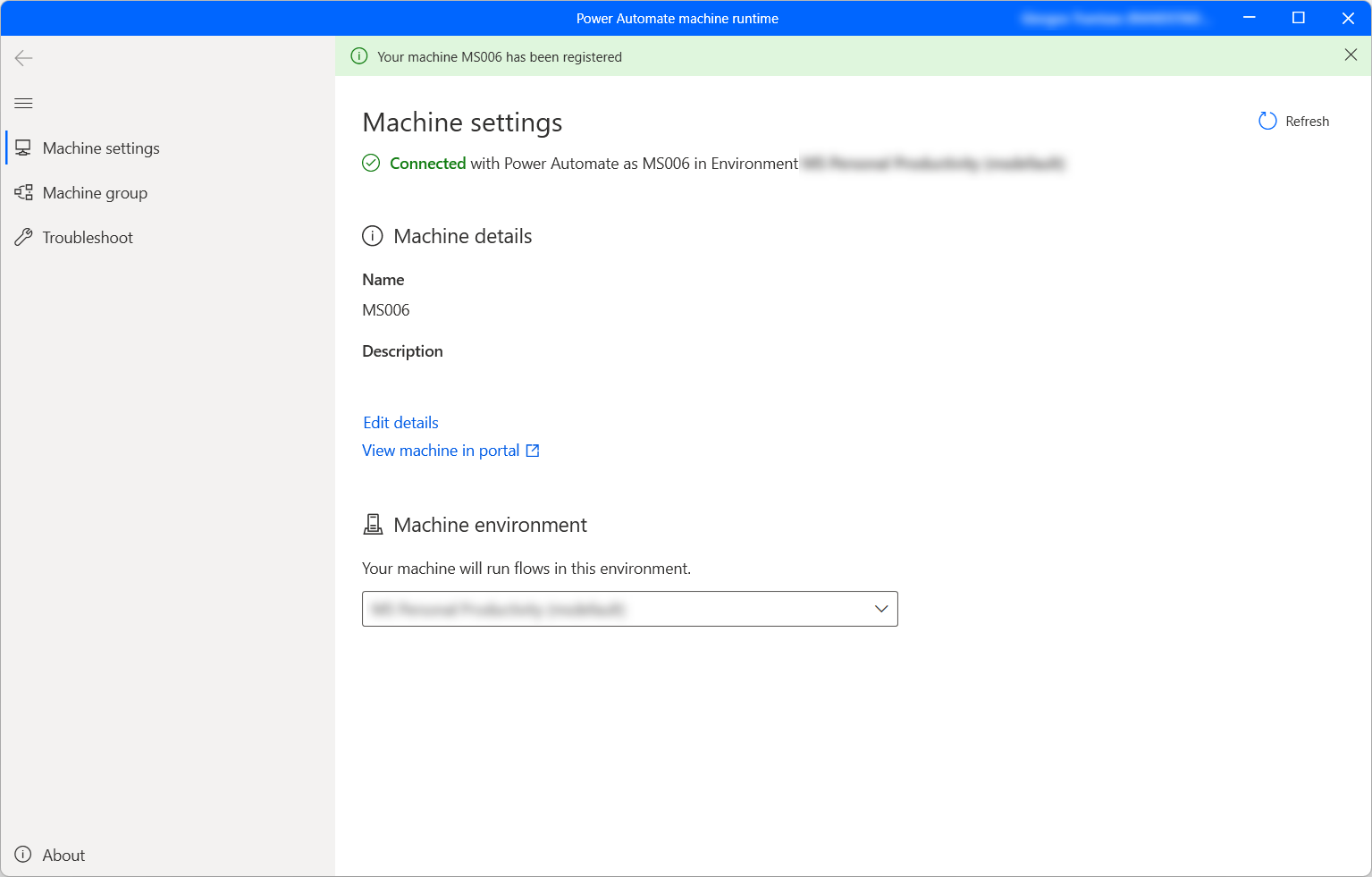
The bring-your-own-machine path is the generally available, production-grade route. You install Power Automate for desktop (version 2.61.132.25266 or later, including the web extension), register the machine via the Power Automate machine runtime app, then enable it for computer use.
Pros
Cons
Bring-your-own machine: register and enable
Register: 1) Install the latest Power Automate for desktop, checking ‘Install the machine-runtime app to connect to the Power Automate cloud portal.’ 2) Open the Power Automate machine runtime app and sign in. 3) Register the machine to the target environment. Enable: 1) Sign in to make.powerautomate.com. 2) Go to Machines. 3) Select your registered machine. 4) On the machine detail page, select Settings. 5) Turn on ‘Enable for computer use.’ 6) Select Save. Runs targeting the same machine are queued and executed sequentially — watch the Run queue tab to monitor backlog.How do you handle credentials and keep the agent safe?
Store sign-in credentials in the tool’s Stored credentials section — either Power Platform internal encrypted storage or your own Azure Key Vault — and lock the agent down with an access-control allow list, a dedicated least-privilege machine, and human supervision routing. Security is not a footnote for a computer-using agent; it is a live identity with a mouse, so treat it like one.
For secrets, internal storage needs no preconfiguration: pick a Type (Website or Desktop app), enter Username and Password, and a Login domain (e.g. *.contoso.com, wildcards allowed) or desktop app process name (e.g. msedge — find it in Task Manager under Processes). The Azure Key Vault option requires the PowerPlatform resource provider registered on the subscription, then you supply subscription ID, resource group, vault name, the username, and the Azure secret name.
Two more controls matter. Access control lets you restrict the agent to specific URLs and apps — but note its limit: it blocks actions on non-allowed sites, it does not stop the model from opening them. And Human supervision routes an email (via Outlook) to a designated reviewer if the agent detects potentially harmful instructions; set a response time limit, after which the request expires and the run stops.
Don’t confuse the two. ‘Credentials to use’ (maker-provided vs. end-user) controls who the agent acts AS on the machine. ‘Stored credentials’ are the website/app logins it types during a run. Maker-provided credentials on a shared agent mean anyone using it acts with YOUR access — choose deliberately.
“A computer-using agent is a live identity with a mouse. Give it a dedicated machine, a least-privilege account, and an allow list — or don’t give it your password at all.”
Build a computer-using agent the safe way
How do you write instructions and test the agent?
Write instructions like you’re briefing a careful colleague — full URLs, exact app names, explicit actions, numbered steps — then hit Test to watch the agent reason and act in real time before you publish. The quality of your Copilot Studio computer-using agent is mostly the quality of these instructions; vague prompts produce vague clicking.
Microsoft’s own best practices: be specific about sites and apps (include the full URL), state actions explicitly (“Once you fill in the form, select Submit. No need to ask for permission”), break down complex UI navigation step by step, and use list formatting for longer tasks. You can also define Inputs — dynamic values merged into the instructions at run time, so the same agent fills a form with different data on each run. For extraction, you can tell the agent to return values as plain text or as structured JSON to hand off to another tool.
When you test, the experience splits the screen: the left panel shows your instructions plus a step-by-step log of the agent’s reasoning and actions; the right panel previews the live machine. A Test completed message marks the end, and Stop testing halts all machine actions immediately. Iterate on the instructions until the log matches your intent — that’s the loop.
Scenario: extract portfolio data and return JSON (Microsoft sample)

Navigate to https://computerusedemos.blob.core.windows.net/web/Portfolio/index.html,
retrieve the portfolio details for all Contoso entities, and return the
results as a valid JSON object.

Structure the output so that:
*  Each top-level key is the client name
*  Each value contains the client's portfolio ID, portfolio value,
   portfolio manager, and last updated date (format: YYYY-MM-DD)
*  Return only the JSON, with no additional text.

# Tip: pair this computer use tool with an email tool, then in the AGENT
# instructions say: "Use computer use to extract the portfolio data and
# email the extracted JSON." Both tools must be added to the agent.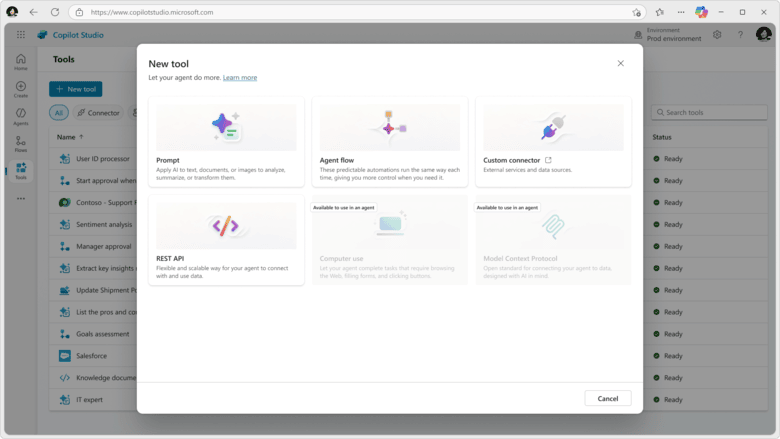
How much does a computer-using agent cost to run?
Worth building — for the narrow, API-less workflows it’s actually for
Each computer use step costs 5 Copilot Credits on a standard model or 15 on a premium model — so a four-step form fill is 20 Credits standard, 60 premium, and a typical multi-screen task can run 30+ Credits before you’ve automated anything substantial. Microsoft’s own worked example: launch the browser and open a portal, click Create new time sheet, fill three fields, and click Submit — four steps, 20 Credits standard.
The math compounds with task complexity, not task count. A login flow, a search, a few clicks of navigation, and an extraction can be a dozen steps before the ‘real’ work starts. That’s why model choice and instruction quality are cost levers, not just quality levers: tighter instructions mean fewer wasted steps, and reserving premium models for genuinely hard UIs keeps the multiplier off your routine runs.
Before you scale a computer-using agent across a team, estimate steps-per-run for your top three workflows, multiply by your daily volume, and put a real number against it. UI automation is powerful precisely because it works where APIs don’t — but you pay for every screen the model has to look at.
Builder’s take
I build agent runtimes for a living (Cyntr) and a discussion platform (Loomfeed), so I read this release as a pipeline person, not a Microsoft fan. Three honest reactions:
- The pricing model is the real story. Five Copilot Credits per step (15 on premium) means a chatty 30-step run is a budget line, not a rounding error. Vision-driven UI automation is inherently step-heavy. Cost your runs in steps before you cost them in tasks.
- The ‘no API needed’ pitch is true and dangerous. Computer use is the right tool only when there’s genuinely no API. If a REST endpoint exists, a connector or MCP call is cheaper, faster, and far more deterministic than a model squinting at a screenshot.
- Treat the agent like a junior contractor with your password. Dedicated machine, least-privilege account, an access-control allow list, and Key Vault for secrets are not optional hardening — they’re the baseline that makes this safe to publish.
Frequently asked questions
Yes. Microsoft made computer use in Copilot Studio generally available as part of the May 2026 update, expanding it to all commercial Power Platform geographies. It launched in preview in September 2025. Note that some related pieces — the hosted browser, Cloud PC pool, the redesigned workflows experience, and the new orchestration layer — were still labeled preview or early-release at the time of writing.
A connector or MCP tool calls an application’s API directly — fast, deterministic, and cheap. Computer use drives the application’s user interface with a virtual mouse and keyboard, using vision and reasoning, and is the right tool only when there is no API to connect to. If an API exists, prefer the connector; computer use costs Credits per step and is less deterministic.
Per Microsoft Learn (May 2026), OpenAI’s Computer-Using Agent (CUA) and Anthropic’s Claude Sonnet 4.5 are generally available at the standard tier (5 Credits/step). Claude Sonnet 4.6 (standard) and Claude Opus 4.6 (premium, 15 Credits/step) are listed as Experimental. Using Anthropic models requires your admin to enable external model access for the environment.
Not necessarily. You can use the Microsoft-managed Hosted browser (preview, not for production) or a Cloud PC pool (preview, Entra-joined and Intune-enrolled) powered by Windows 365 for Agents. For production today, the generally available path is bring-your-own-machine: install Power Automate for desktop, register the machine, and turn on ‘Enable for computer use.’
Computer use bills through the Agent action feature in Copilot Credits. Each step costs 5 Credits on a standard model or 15 on a premium model. Microsoft’s example of a four-step time-sheet submission costs 20 Credits on a standard model or 60 on a premium one. Budget by estimating steps per run, since complex UIs are step-heavy.
Use a dedicated, least-privilege machine; store secrets in Azure Key Vault or Power Platform internal storage; enable access control with an allow list of approved URLs and apps; and configure human supervision so a reviewer is emailed if the agent detects potentially harmful instructions. Remember access control blocks actions on non-allowed sites but doesn’t stop the model from opening them, and ‘maker-provided credentials’ on a shared agent let others act with your access.
Primary sources
- What’s new in Copilot Studio: May 2026 updates and features — Microsoft Copilot Blog
- Computer-using agents in Microsoft Copilot Studio are now generally available — Microsoft Community Hub
- Automate web and desktop apps with computer use — Microsoft Learn
- Configure where computer use runs — Microsoft Learn
- What’s new in Power Platform: May 2026 feature update — Microsoft Power Platform Blog
Last updated: June 2, 2026. Related: Products.